Drawings
On-screen drawings #
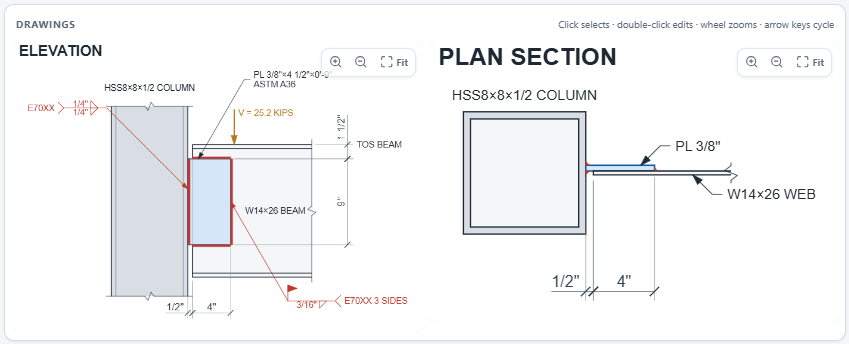
Every connection is drawn live, to scale, as an elevation and a plan section. Some types draw other views: the shear end plate adds an end plate detail and the double angle a section A-A; the seated connection shows a section A-A in place of the plan; the FR moment plan is a plan section at the top flange; and the base plate shows an elevation (section through the pier) and a plan. The drawings show:
- the real support profile: a column flange with the I-section in plan, a column web with the flanges hidden, a girder cross-section offset by the top-of-steel difference, or the HSS walls;
- the plate or angle, with an angle's support leg edge-on (each connection type draws its own elements: angles, end plate, seat, tee, flange plates, base plate and anchor rods);
- bolts with heads, washers, nuts and stick-out;
- radiused copes;
- dimensions, callouts and AWS weld symbols;
- the load arrow.
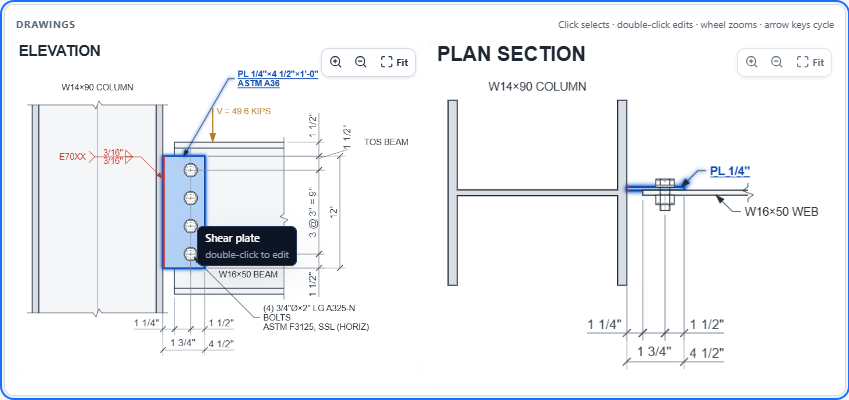
The on-screen drawing, the DXF and the PDF sheet are generated from the same drawing description, so they always agree.
Selecting and editing elements #
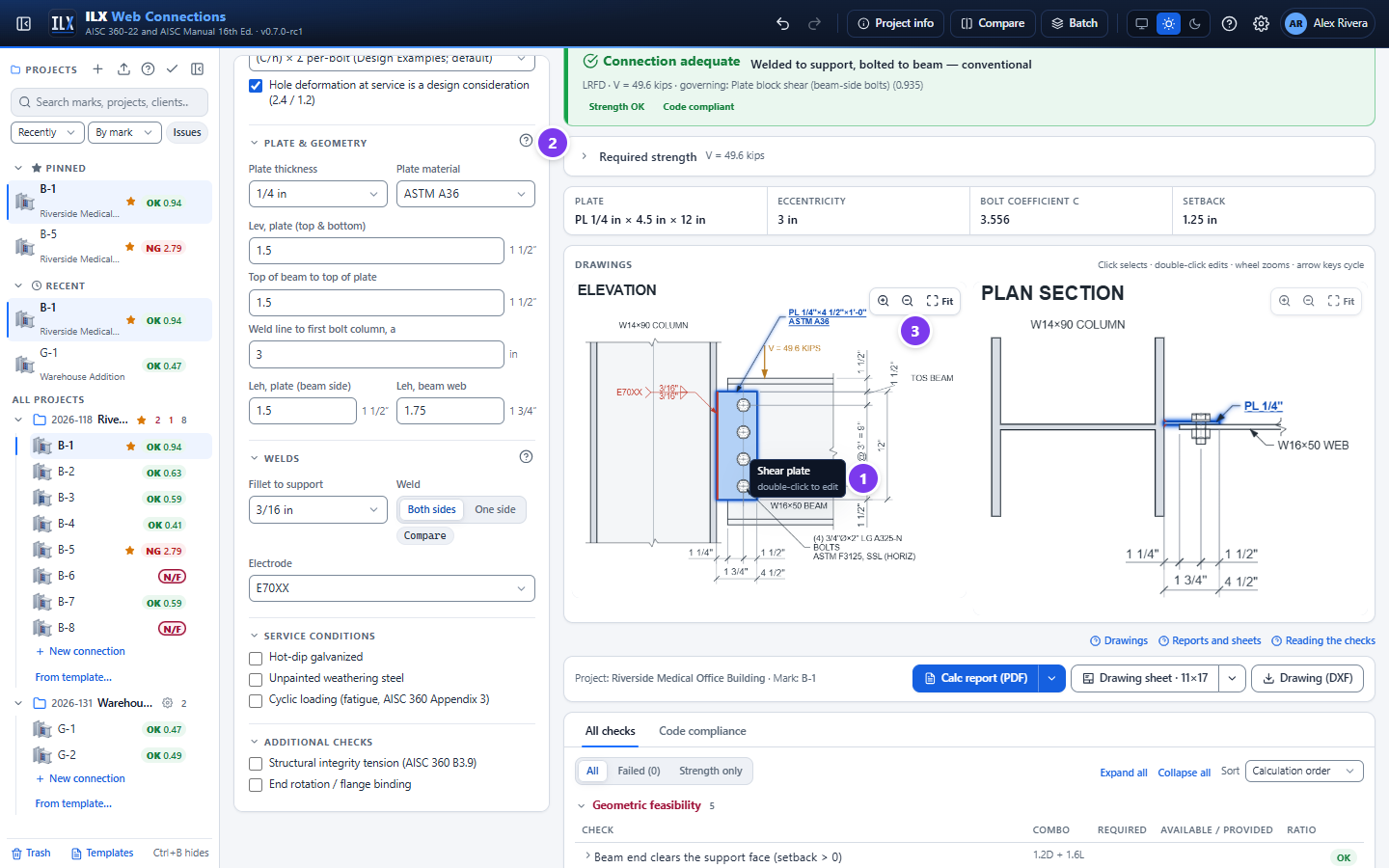
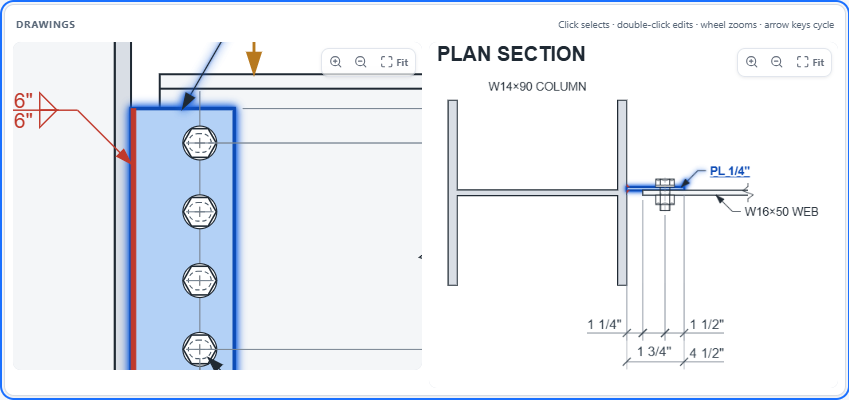
- Hover and select. Hovering over an element shows its name and what a click does. Click an element (plate, angle, bolts, welds, beam, support, cope, load) to select it. It is outlined in blue in both views.
- The matching inputs. The input panel scrolls to the element's section.
- Zoom controls. Each view has its own (see Zoom and pan).
Double-click an element to edit it. Its fields open in a small editor beside it. Changes apply immediately; press Esc or select × to close.
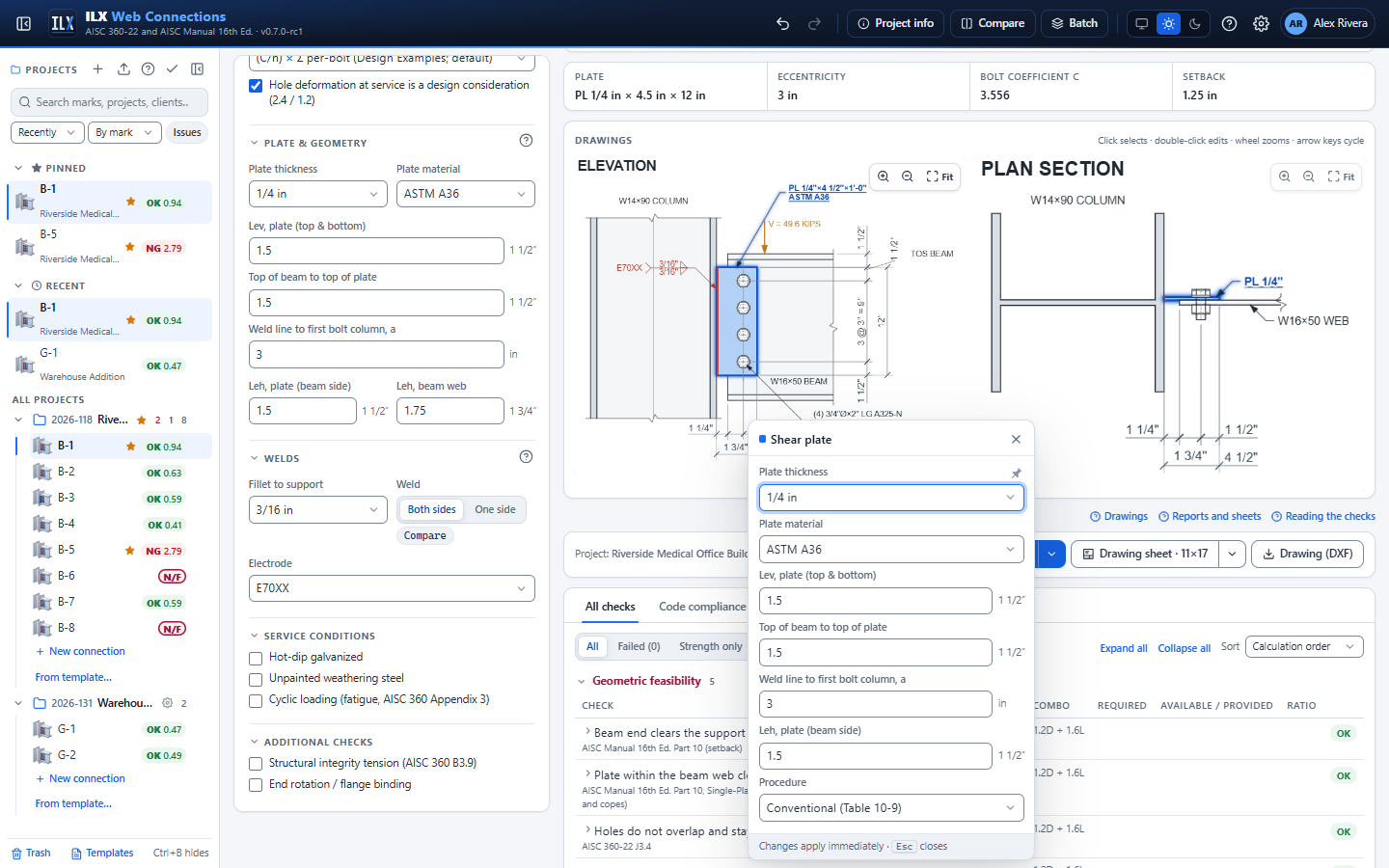
The element editor shows only the fields that apply to the element in the current configuration. For example, the plate in a Weld / Bolt connection shows the thickness, material, Lev, top of plate, a, Leh and procedure.
From the keyboard: select the drawings panel, then use the arrow keys (or Tab) to step through the elements. Press Enter to edit the selected element and Esc to clear the selection.
Failing elements are outlined in red. Not feasible elements are hatched red and carry the numbered markers of the NOT FEASIBLE banner.
Zoom and pan #
| To… | Do this |
|---|---|
| Zoom about the cursor | Turn the mouse wheel over a view |
| Zoom in steps | Use Zoom in and Zoom out in the view's corner |
| Pan | Drag |
| Fit | Select Fit, or double-click empty space |
Each view zooms on its own, from half size to eight times.
Dark drawings #
In the dark theme the drawings stay on white paper by default. To draw them in light ink on navy instead, select Dark drawings in the drawings bar. The red, blue and amber highlights keep their meaning. Select Paper drawings to go back. The button appears only in the dark theme.
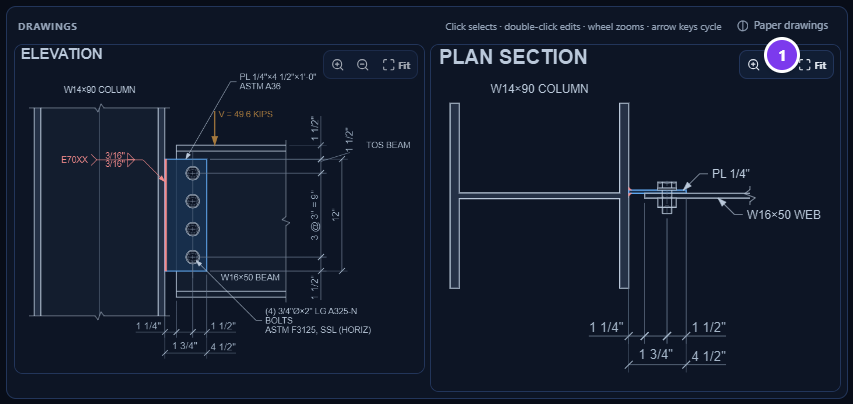
- Paper drawings / Dark drawings toggle.
Drawing sheets #
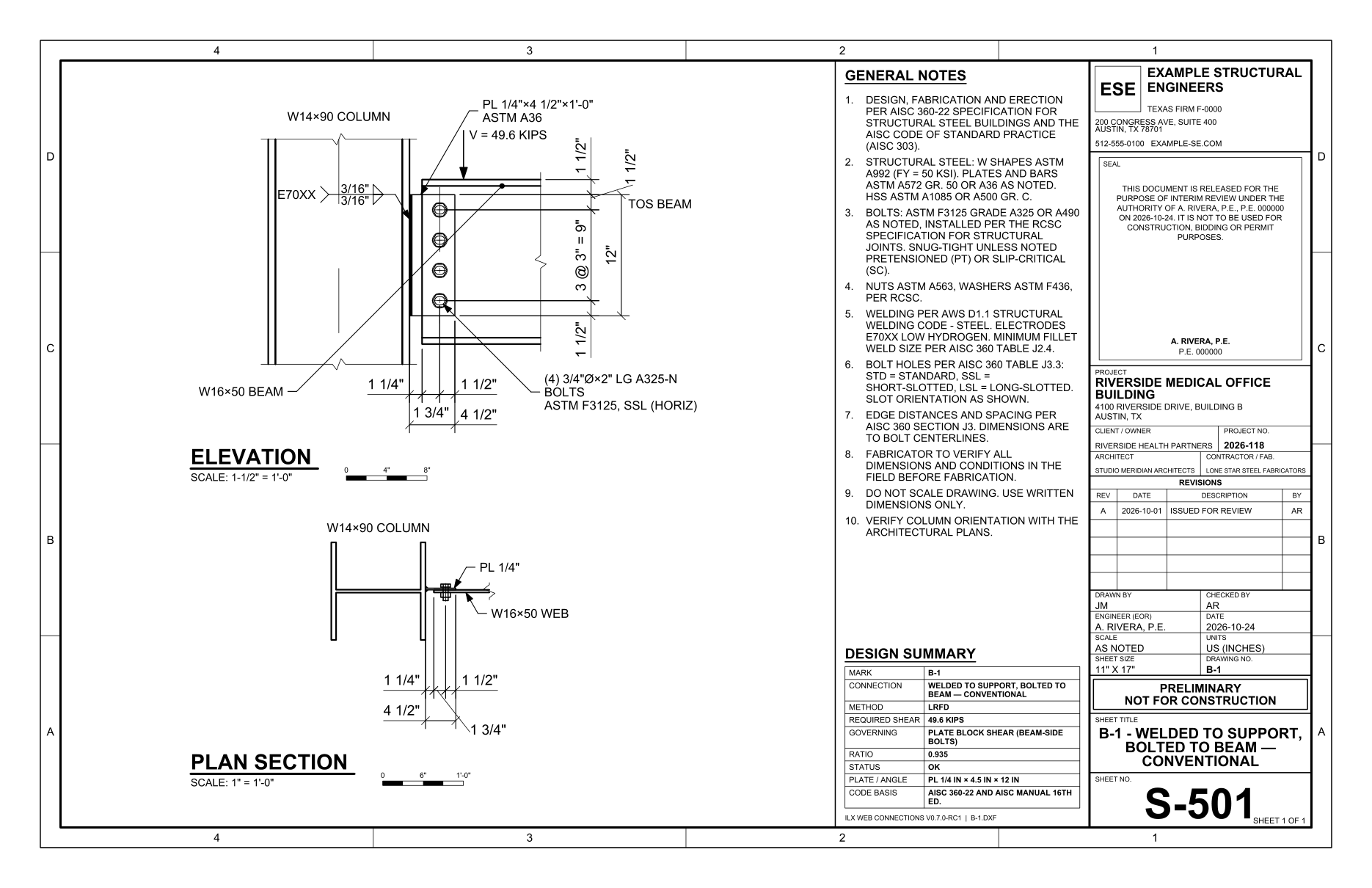
A drawing sheet is the connection detail on a title-blocked sheet, ready to issue or to insert in a drawing set. It contains:
- the elevation and plan views at standard scales, each with its title, scale and bar scale;
- general notes;
- a design summary table: mark, connection, method, required shear, governing check, ratio, status, plate or angle, code basis;
- the title block, with your firm, the seal block, project information, revisions, people, dates, status, sheet title and sheet number.
Producing a sheet #

- Drawing sheet in the output bar produces the PDF at the current size (shown on the button, for example 11×17).
- To use another size, open the arrow beside it and pick:
- 11 × 17 (tabloid) landscape;
- 8.5 × 11 landscape;
- 8.5 × 11 portrait.
The PDF opens at once, and this browser remembers your choice.
- Use my default (or Use the project default) returns to the default sheet size of the title block settings. The menu labels that size project default when the project overrides the sheet size, and my default otherwise (see How settings are inherited).
- Drawing (DXF) produces the same sheet as a DXF file.
In metric connections the sizes are labelled in millimetres and the sheet is drawn in millimetres.
Scales. ILX picks the largest standard scale at which each view fits its space, for example 1-1/2" = 1'-0" for the elevation on 11 × 17 and 3/4" = 1'-0" on letter. The scale and a bar scale print under each view title.
Letter sheets and keynotes #
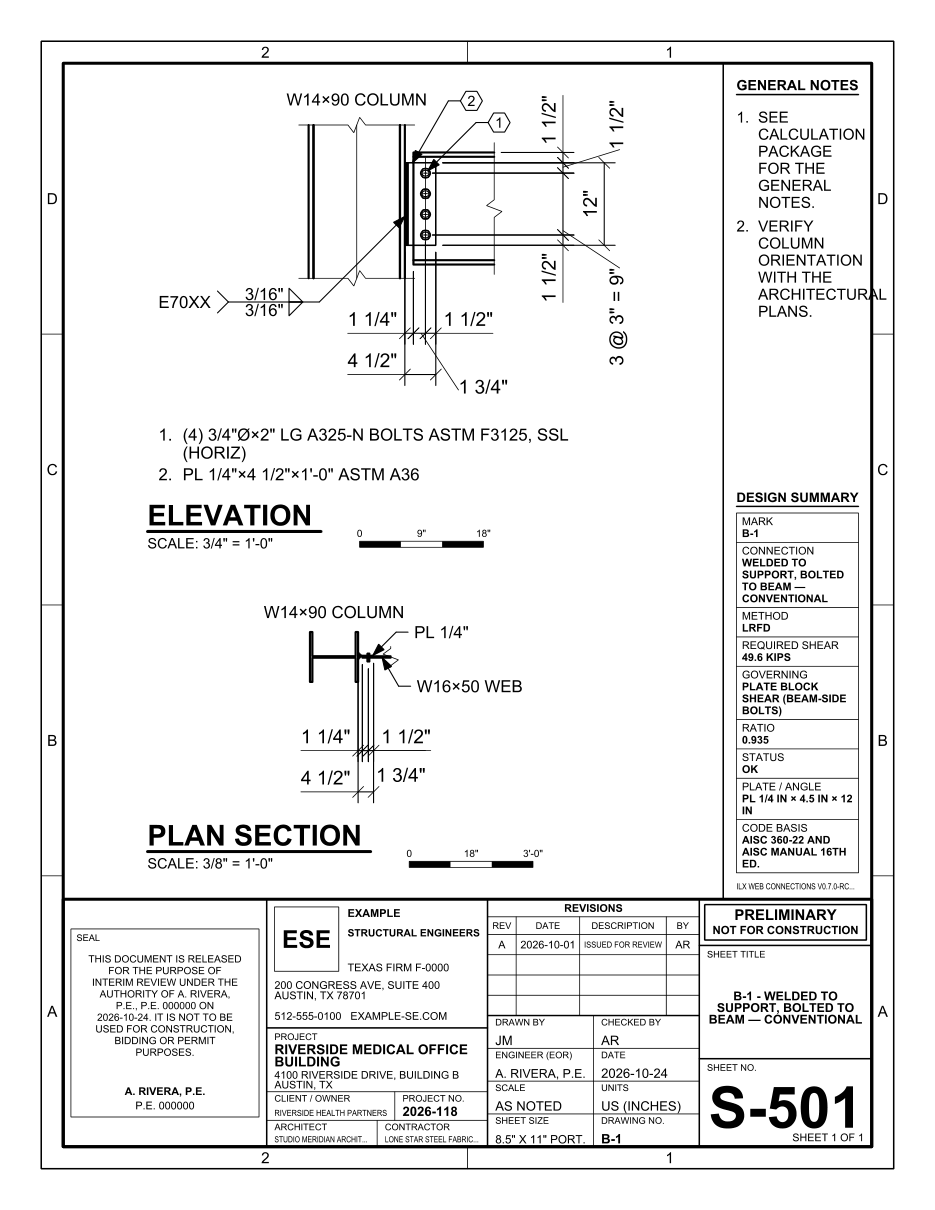
On 8.5 × 11 sheets space is tight. ILX:
- wraps long callouts, and replaces them with numbered keynotes (hexagon tags) listed under the view;
- compacts the general notes. When they do not fit, it prints See calculation package for the general notes.
On portrait sheets the title block becomes a strip along the bottom.
What the title block shows #
| Title block area | Source |
|---|---|
| Firm name, address, phone, web, license, logo text | Settings → Title block (your defaults or the project's overrides) |
| Seal block | Engineer of record and license, plus the sheet Status (for example Preliminary — not for construction) |
| Project name, address, client, number, architect, contractor | Project information |
| Revisions | Project information → Revisions (the latest rows) |
| Drawn by, Checked by, Engineer, Date | Project information, falling back to the title block settings |
| Sheet number | The sheet prefix (for example S-5) and the sheet's place in the set: S-501, S-502… |
| Sheet title | The mark and the connection description |
See Title block settings.
DXF files #
The DXF (AutoCAD R2013 format) is the drawing sheet as an editable CAD drawing:
- Model space holds the views at full size, in inches (US) or millimetres (SI).
- Paper space holds the sheet, with one viewport per view at its scale, plus the notes, the design summary and the title block.
- Dimensions are true DIMENSION entities on the ILX_IN or ILX_MM dimension style, so they update if you stretch the geometry. Text uses the ILX and ILX_BOLD styles.
Layers #
The layers follow the US National CAD Standard (discipline S, Structural).
| Layer | Contents |
|---|---|
| S-DETL-SUPT | Supporting member (column, girder, HSS) |
| S-DETL-MBND | Supported beam |
| S-DETL-PLAT | Shear plate |
| S-DETL-ANGL | Angle |
| S-DETL-BOLT | Bolts (heads, nuts, washers, shanks) |
| S-DETL-HOLE | Bolt holes and slots |
| S-DETL-WELD | Fillet welds |
| S-DETL-HIDN | Hidden lines |
| S-DETL-CNTR | Centre lines |
| S-ANNO-DIMS | Dimensions |
| S-ANNO-TEXT | Callouts and notes |
| S-ANNO-SYMB | Weld symbols |
| S-ANNO-IDEN | View titles |
| S-ANNO-LOAD | Load arrow and value |
| S-ANNO-TTLB | Title block and border |
| S-ANNO-REVS | Revision table and seal box |
| S-ANNO-NPLT | Non-plotting construction geometry |
Blocks #
| Block | Contents |
|---|---|
ILX_TITLEBLOCK_<size> | The title block, with attributes for every field. Edit the attributes (ATTEDIT) to change a value without regenerating the sheet. |
ILX_BOLT_<diameter>_<view>_<washers>… | One block per bolt assembly: size, view, washers and grip. Every bolt is an insert of its block, with the attributes DIA, LENGTH and GRIP. |
Realistic bolts #
Bolts are drawn to their real proportions in every output. Each bolt shows:
- a heavy hex head and nut, and F436 washers where the joint needs them;
- the threads, and the stick-out beyond the nut;
- the holes, including slots and oversized holes, drawn to size.
The bolt callout gives the quantity, diameter and length, for example (4) 3/4"Ø×2" LG A325-N BOLTS, ASTM F3125, SSL (HORIZ). The bolt length follows AISC Manual 16th Ed. Part 7 (Proper Selection of Bolt Length): the grip, plus the Table 7-14 addition for the nut and stick-out, plus 5/32 in. per F436 washer. It is rounded up to the next 1/4 in. up to a 5 in. length and to the next 1/2 in. over 5 in. Metric lengths are rounded up to 5 mm.
Weld symbols #
Welds are drawn true to size in their corners. Each weld has an AWS weld symbol:
- Support weld. A fillet symbol on both sides of the arrow line, with the size on each side (for example 3/16 and 3/16) and the electrode (E70XX) in the tail. It means the plate is welded on both faces. A one-sided weld (Weld: One side) is drawn on the arrow side only.
- Beam-side weld (single plate Weld / Weld, single angle Bolt / Weld). The size, the electrode and the extent, for example E70XX 3 SIDES for a C-shaped weld.
- Groove welds (FR moment beam flanges, base-plate CJP welds): the AWS bevel-groove symbol, with CJP in the tail.
- Colour. Weld symbols are drawn in red on screen, on the S-ANNO-SYMB layer.