
Projects and files
Your work is organised as projects that hold connections. Each connection is one designed connection with its own mark (B-1, ST-3 and so on). Everything is stored on the ILX server under your account. Other users cannot see your projects.
The project panel #
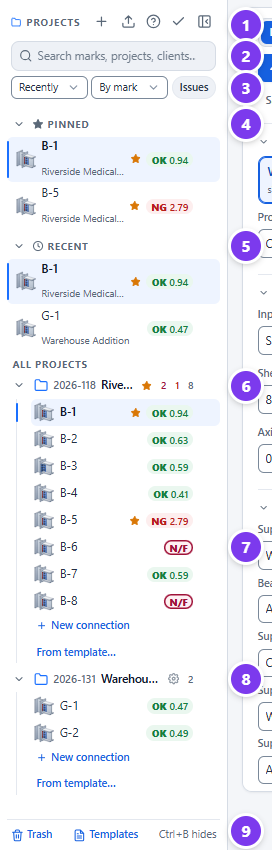
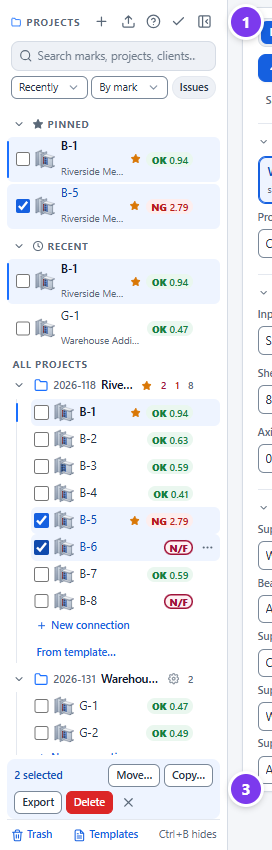
- Panel commands:
- + New project.
- Upload Import a project file.
- ? Open this page of the manual.
- ✓ Select several connections.
- Hide the panel (Ctrl+B).
- Search: marks, project names, project numbers and clients.
- Sort and filter:
- Projects: Recently changed, Project name or Project number.
- Connections: By mark, Worst status first, Highest ratio first or Last edited.
- Issues shows only connections that are NG, not feasible or have input errors.
- Pinned: connections you pinned, across all projects.
- Recent: the six connections you opened last.
- Project row:
- project number and name;
- a star if the project is pinned to the top;
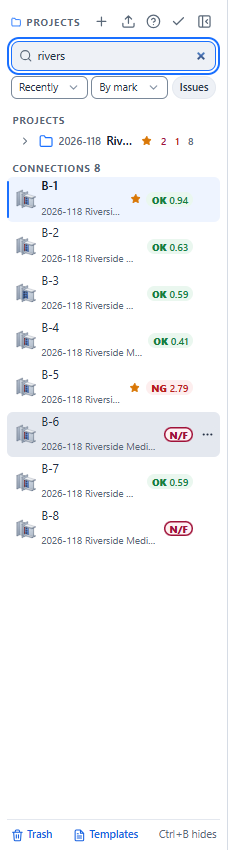
- counts: not feasible (outlined), not adequate (red) and the total number of connections.
- Connection row: mark and status pill. Hover over the pill for the governing check.
- Project settings badge: the gear marks a project with its own title block or report settings (see Project overrides).
- Trash and Templates.
Status pills
| Pill | Meaning |
|---|---|
| OK 0.94 | Adequate; the governing ratio is 0.94 |
| NG 2.79 | Not adequate (a strength or code-compliance check fails); the governing strength ratio is 2.79 |
| N/F | NOT FEASIBLE: the geometry cannot be built (see NOT FEASIBLE) |
| ERR | The saved input is invalid |
Open a tab and the pill follows the live result as you edit.
Projects and connections #
To create a project
- Select + at the top of the project panel.
- Type the project name and select Create.
- The Project information dialog opens. Fill it in now, or select Skip for now and come back later.
To add a connection
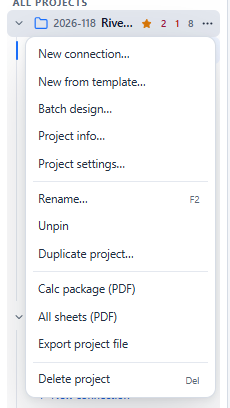
- Open the project's menu (⋯ on the project row, or right-click it) and choose New connection…, or select + New connection under the project's connections.
- Follow the three wizard steps (Connection, Members, Loads). Select Create. You can select Create on any step; the remaining values come from the project defaults or the standard defaults.
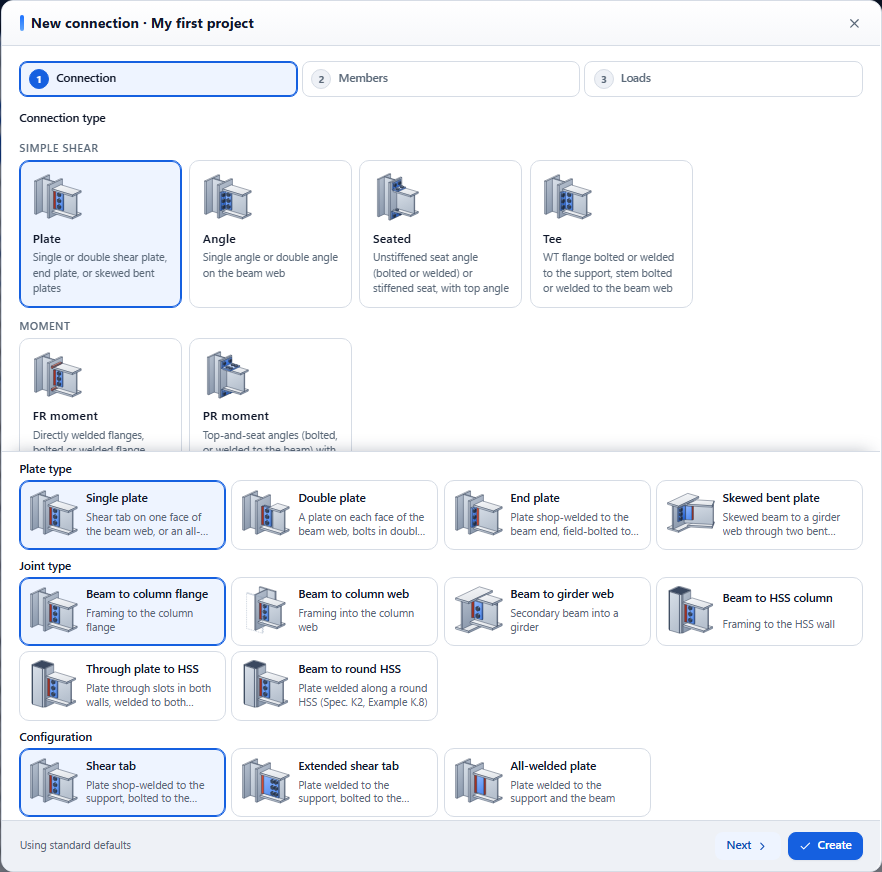
The Connection step holds the Connection type cards, grouped Simple shear, Moment and Column bases (see Choosing the connection type), then the type's options: Plate type or Angle type for the Plate and Angle cards, the Joint type and the type's Configuration cards, each with a small picture. For a single plate, Shear tab is Weld / Bolt (conventional), Extended shear tab is Weld / Bolt (extended) and All-welded plate is Weld / Weld. Cards that cannot be built on the chosen joint are disabled, with the reason in their tooltip; for example angles cannot be bolted to an HSS column. Picking Beam to HSS column sets the column to an HSS8X8X1/2 in ASTM A500 Gr. C (rectangular), which you can change on the next step; a round HSS switches the material to A500 Gr. C round. Picking a column or girder again restores a W shape (W14X90 or W24X68) in A992. The Members step asks for the type's own element where it has one (angle, seat angle or tee), and an FR moment connection asks for the beam and column and for moments in the Loads step. Base plate opens its own wizard.
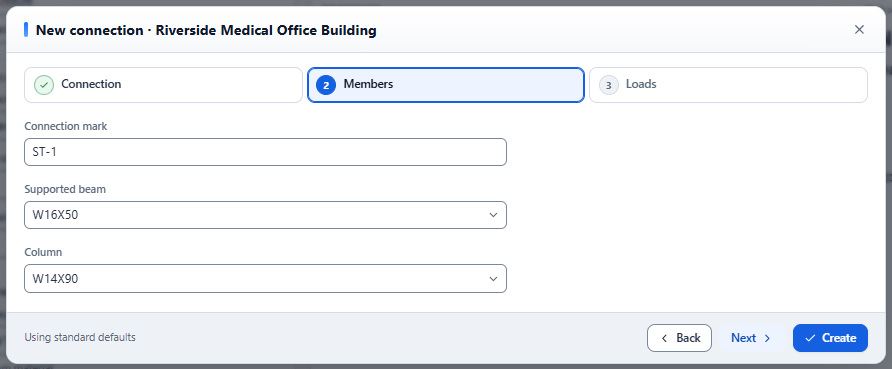
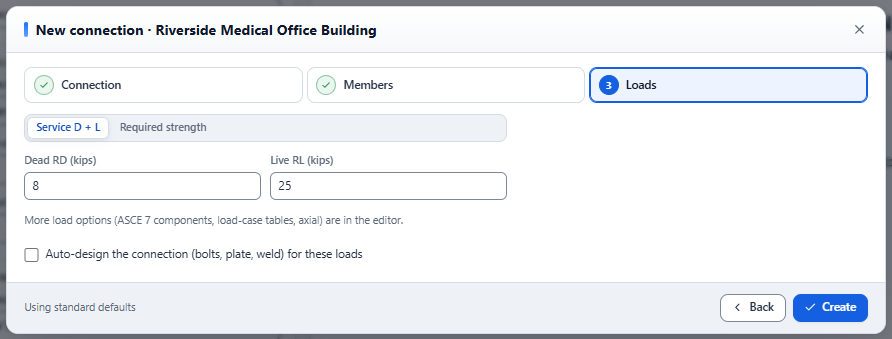
New connections get the next free mark, ST-1, ST-2 and so on. Rename them to your marks with F2 or Rename… in the connection menu.
To open, rename or delete
| Action | How |
|---|---|
| Open | Click the connection. It opens in a tab, or switches to its tab if already open. |
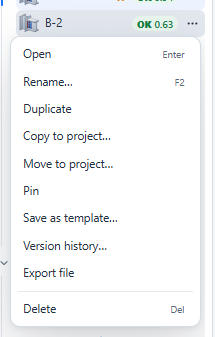
| Rename | Select the row and press F2, or choose Rename… in its menu. |
| Delete | Press Delete, or choose Delete in its menu. Deleted items go to the trash. |
Project information #
The project information feeds the drawing title block, the general notes on every sheet and the report's project section.
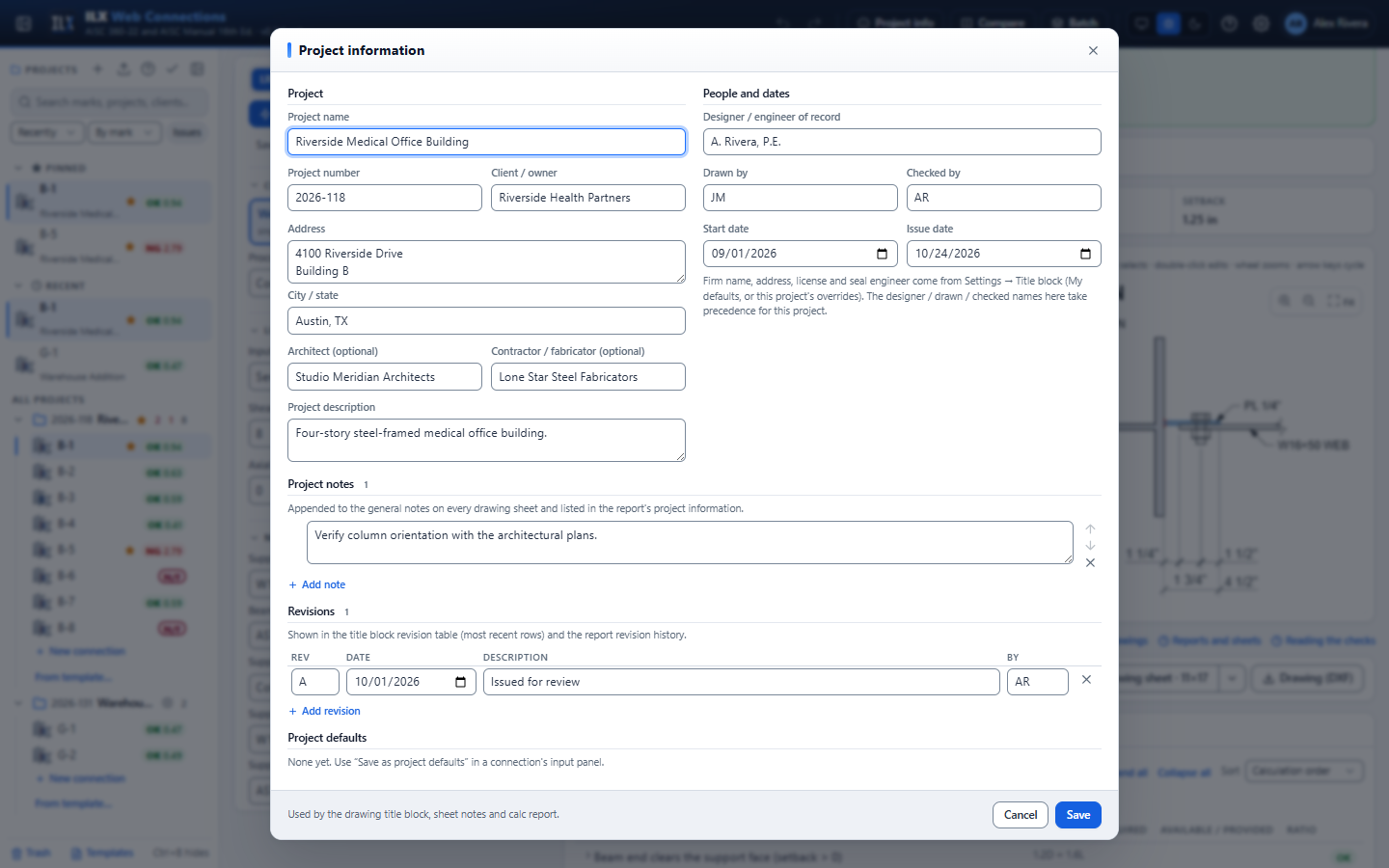
- Open it with Project info in the header (for the active connection's project) or Project info… in a project's menu.
- Fill in the fields:
- Project: name, number, client or owner, address, city and state, architect, contractor or fabricator, description.
- People and dates: the designer or engineer of record, Drawn by, Checked by, and the start and issue dates.
- Project notes: appended to the general notes on every drawing sheet and listed in the report. Reorder them with the arrows.
- Revisions: Add revision proposes the next letter or number with today's date. The latest rows print in the title block revision table; all of them can print in the report's revision history.
- Select Save.
Firm-level data (firm name, address, license, seal engineer) is not entered here. It belongs to the title block settings (see Settings). Names entered here override those defaults for this project only. A blank field shows Blank = project default and uses the project's title block settings: the project override, or your own default.
Project defaults #
Save as project defaults in a connection's input panel stores its materials, bolts, welds and methods for the project. New connections in the project start from these values, and the wizard footer says Project defaults applied. To remove them, select Clear defaults at the bottom of the project information dialog.
Finding connections #
- Search. Type in the search box. It matches connection marks and project names, numbers and clients across all your projects. Press Down to move into the results, and Esc to clear.
- Sort. The two lists under the search box sort projects and connections. Worst status first puts NOT FEASIBLE, then NG, then errors at the top.
- Issues. Turn on the Issues chip to hide every adequate connection.
Your sort, filter and section choices are saved to your account.
Pins and recent connections #
- Pin a connection. Choose Pin in its menu. Pinned connections appear in the Pinned list at the top of the panel and carry a star.
- Pin a project. Choose Pin to top in the project menu. Pinned projects sort first in All projects.
- Recent. The Recent list shows the six connections you opened most recently.
- Collapse a list. Select the Pinned or Recent heading.
Moving, copying and duplicating #
| To… | Do this |
|---|---|
| Duplicate a connection in the same project | Connection menu → Duplicate. The copy gets the next free mark and opens. |
| Copy a connection to another project | Connection menu → Copy to project…, then pick the project. |
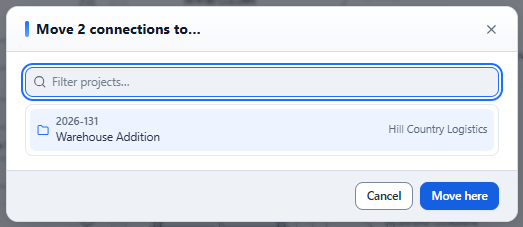
| Move a connection | Connection menu → Move to project…, or drag the connection onto another project. |
| Copy by dragging | Hold Ctrl (or Alt) when you drop. |
| Duplicate a whole project | Project menu → Duplicate project…. The copy has the project information, defaults, settings overrides and every connection, but not the trash or version history. |
To act on several connections at once
- Select ✓ (Select connections) at the top of the panel, or Ctrl+click the connections.
- Tick the connections you want. Ctrl+A selects every visible connection.
- Use the bar at the bottom of the panel: Move…, Copy…, Export or Delete.
- Select × or press Esc to clear the selection.
Templates #
A template stores every input of a connection so you can reuse it in any project. Templates are private to your account.
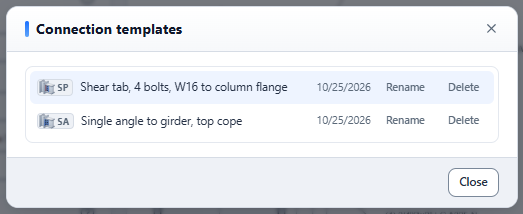
- Save a template. Open a connection's menu and choose Save as template…. Name it and select Save template.
- Use a template. Open a project's menu and choose New from template…, or select From template… under the project's connections. Pick the template and select Create connection, or double-click it. The new connection gets the next free mark.
- Manage templates. Select Templates at the bottom of the project panel to rename or delete them. Deleting a template does not affect connections made from it.
Version history #
ILX keeps earlier states of each connection's inputs.
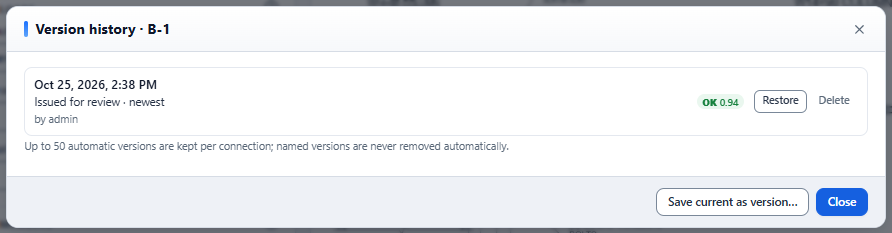
- Automatic versions. While you edit, ILX keeps at most one version every 10 minutes, and up to 50 per connection.
- Named versions. Select Save current as version… and give a name, for example Issued for review. Named versions are never removed automatically.
- Restore. Select Restore on a version. ILX first saves the current inputs as a version, so a restore can always be undone.
- Delete. Remove a version you no longer need.
Open the history from the connection menu (Version history…).
"Results changed since this connection was saved." When you open a connection and today's result differs from the result saved with it, ILX shows this banner with the saved and current status and ratio. It means the calculation engine was updated after the connection was last saved. Review the change before you reissue the calculations, then select Dismiss.
The trash #
Deleting a project or connection moves it to the trash.
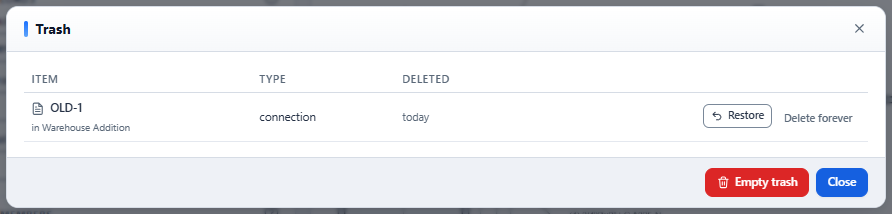
- Select Trash at the bottom of the project panel.
- Select Restore to put an item back. A connection whose project is also in the trash cannot be restored until you restore the project.
- Select Delete forever to remove one item permanently, or Empty trash to remove everything. These cannot be undone.
Import and export #
Project files are JSON files (*.ilxproj.json). Use them to archive an issue, move work between servers or send a project to a colleague.
| To… | Do this |
|---|---|
| Export a project | Project menu → Export project file. The file holds the project information, defaults, settings overrides and every connection. |
| Export some connections | Connection menu → Export file, or select several and choose Export in the bulk bar. The file imports as a new project. |
| Import | Select Upload (Import project file) at the top of the project panel and choose the file. It becomes a new project in your account. |
ILX imports project files from every earlier version (formats 1 to 4) and upgrades older connection inputs as it reads them. The file size limit is 5 MB. A file with errors is refused, and the errors are listed.
Backups #
- Nightly backups. The server keeps a backup of the whole database every night, and keeps the last 14. They live in the server's data volume (
/data/backups). Ask your administrator to restore one. - Full database download. Administrators can download the whole database at
/api/backupon the ILX address while signed in. The file holds every user's data, so store it securely. - Archive at issue. For a durable record of what was issued, export the project file and keep it with the issued PDFs.