
Settings
Settings hold your title block (firm, engineer of record, sheets and general notes) and your report configuration. Both belong to you, not to the whole firm, and any project can override them. An engineer who works for several clients can keep one set of defaults and change only what a client's project needs.
Opening Settings #
- For your defaults: select the gear in the header. Settings opens on My defaults.
- For a project: open the project's menu in the project panel and choose Project settings…. Or open Settings from the gear and select Project: <name> (the active connection's project) or Other project… in the scope bar.
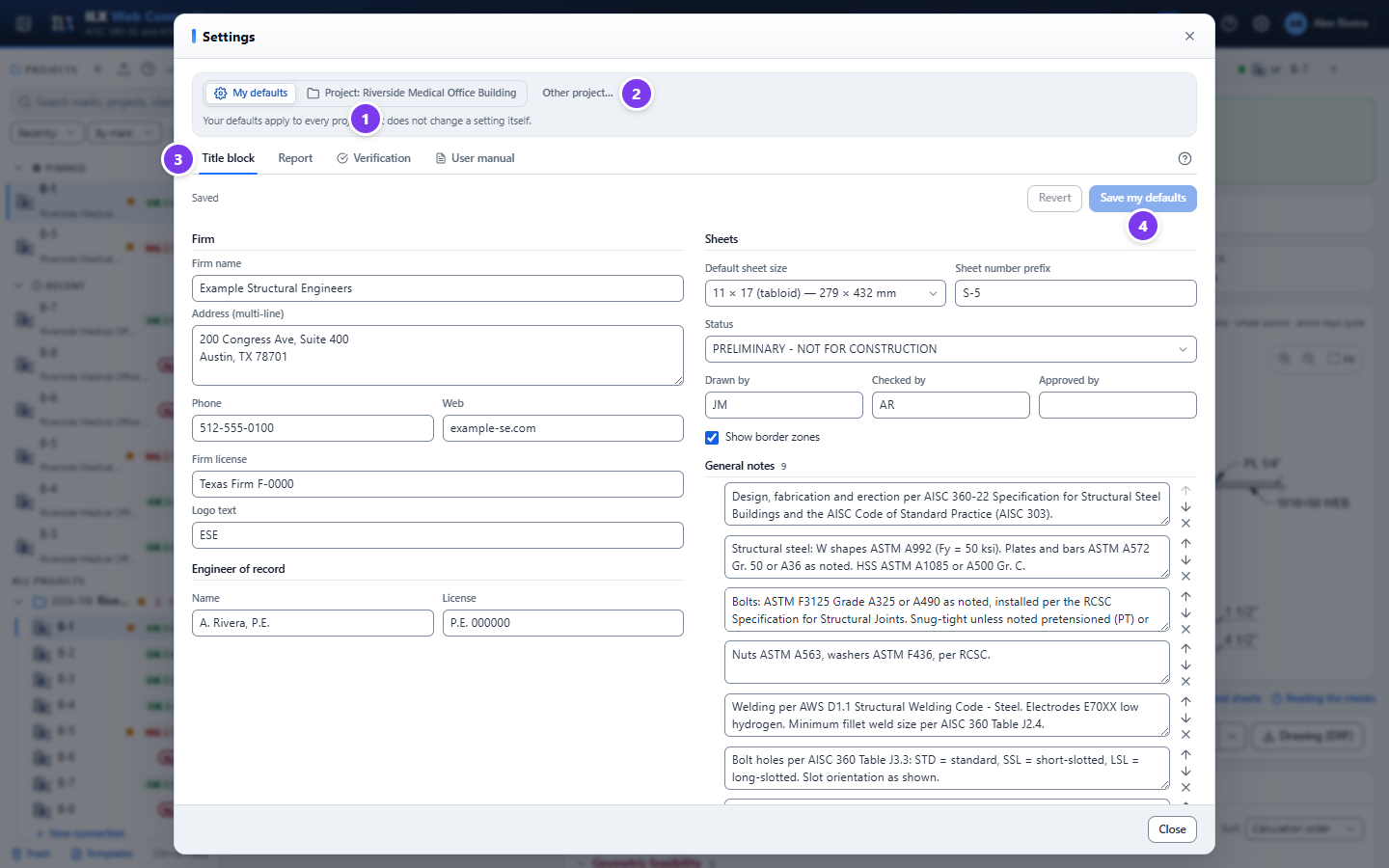
- Scope bar: My defaults or Project: <name>.
- Other project… picks another project.
- The Title block and Report tabs. In project scope each tab shows its number of overrides.
- Save my defaults (or Save for this project) and Revert. Nothing is saved until you select Save. Closing with unsaved changes asks first.
How settings are inherited #
Each setting comes from the first of these layers that sets it:
- This report: the overrides in Customize this report…, for one PDF only.
- Project overrides: the fields a project changes.
- My defaults: your own settings.
- Built-in defaults.
A project stores only the fields it changes. A field it does not change follows your defaults, including later changes to them. Changing your firm phone number in My defaults therefore updates every project that did not set its own.
Lists (such as the general notes or the report section order) are replaced as a whole when a project overrides them; they are not merged item by item.
Project overrides #
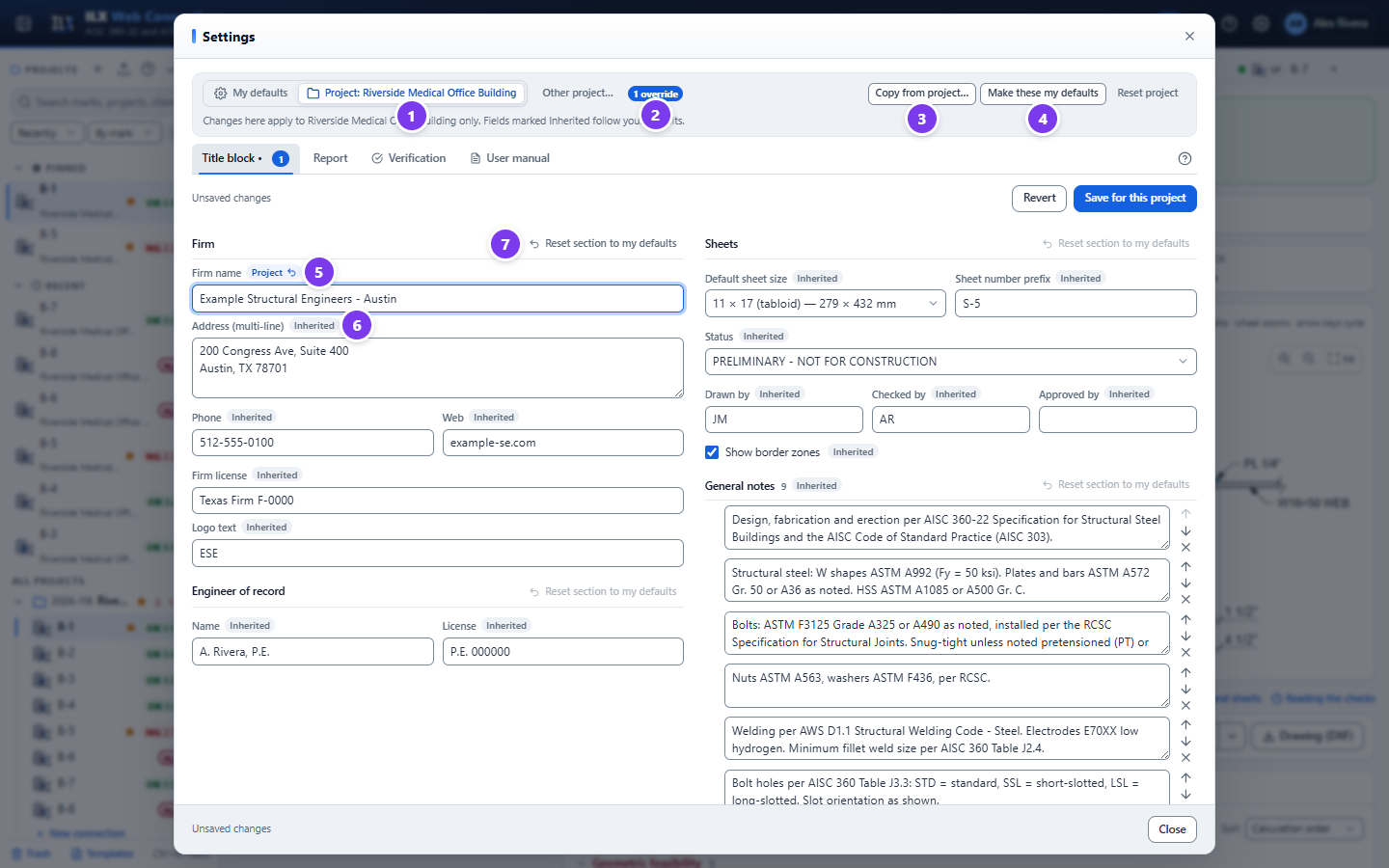
- Project scope. Project: <name> is selected. The help line says changes apply to this project only.
- Override count. The number of fields this project changes, for example 1 override.
- Copy from project… replaces this project's overrides with another project's, after you confirm.
- Make these my defaults makes this project's settings your defaults for every project that does not override them. This project then simply inherits them.
- Project mark. A field this project changes is marked Project. Select its reset arrow to go back to your default.
- Inherited mark. A field that follows your defaults is marked Inherited.
- Reset section to my defaults resets every field of one section.
Reset project (at the right of the scope bar) removes every title block and report override of the project, which then follows your defaults again.
A project with its own settings shows a gear badge in the project panel.
Design rules #
The Design rules tab holds the rules that change the design itself, set for you (My defaults) or overridden for one project, like the other settings.
- Pretension required for every bolted joint. Tick it when the governing code requires pretensioned or slip-critical bolts throughout the building (RCSC Section 4.2(1)). AISC 360-22 no longer lists these cases, so this is your project decision. The former AISC 360-16 J1.10 cases were column splices and column bracing in tall buildings, buildings with cranes over 5 tons, and supports of running machinery or other sources of impact or stress reversal. With the rule on, each bolted connection gets the Project rule: bolts pretensioned or slip-critical check.
- Reason. A short text, such as "cranes > 5 tons", printed with that check.
- RCSC Specification edition. The default is 2020, the edition AISC 360-22 adopts (Section A2). Choose 2025 (ANSI/AISC 348-25) if your project specifies it. The two editions agree on hole sizes, minimum pretensions, slip resistance and the joints that must be pretensioned, so no bolt strength or pass/fail result changes. The setting changes the cited edition and clause numbers and these notes. With 2025, the calibrated wrench method is gone from the washer list, F3394 reaction and backup washers are listed as an option, and plate washers and bars must have Fy of at least 40 ksi. The coating hint names ASTM F3393 zinc-flake. With 2020, bolts in tension under fatigue get the 30 % prying limit of Section 5.5; RCSC 2025 drops that limit and checks the stress range instead, as AISC 360-22 Appendix 3 does. The drawing general notes name the edition as you type them, so edit them to match.
- Tightening clearance C1 (AISC Manual Tables 7-15 / 7-16). For twist-off bolts (F1852, F2280), Table 7-16 (p. 7-81) gives C1 by installation tool and socket. For each diameter (5/8 to 1-1/4 in.) pick the tool and socket your erector uses. The default is the socket the table's staggered-bolt part (p. 7-82) is built on: S-61EZ 2-7/8 in. for 5/8 in., GS-111EZ 3-5/8 in. for 3/4 to 1-1/8 in., GX-361ZA-UC 4-5/8 in. for 1-1/4 in. Other tool: enter C1 takes the manufacturer's value (Table 7-16 note a). Heavy hex bolts always use Table 7-15.
- C1 for 1/2 in. bolts. Tables 7-15 and 7-16 start at 5/8 in., so this value is yours (prefilled 7/8 in.).
- C1 for bolts the Manual does not tabulate. Tables 7-15 and 7-16 cover ASTM F3125 bolts only. For Group 200 bolts (ASTM F3043 / F3111; 1, 1-1/8 and 1-1/4 in.) the Manual refers you to the manufacturer (p. 7-4), and no manufacturer publishes tool or socket dimensions. For ASTM A307 bolts and threaded rods (F1554, A36; 5/8 to 1-1/2 in.) there is no table either. Enter C1 per diameter from your erector's tool. A blank field uses the Table 7-15 heavy hex value, shown greyed in the field. Every check states the value as an engineer setting, for example "engineer setting C1 = 1-3/8 in., default the Manual Table 7-15 heavy hex value: the Manual does not tabulate F3043 / F3111 clearances". For F3043 the entering clearance C2 is the round head diameter / 2 + 1/8 in. (the Table 7-16 note, with the ASTM F3043 head: 1-3/16, 1-5/16 and 1-3/8 in.).
Every clearance check states the C1 it used and where it comes from, for example "C1 = 1.188 in. (Manual Table 7-16, S-61EZ, 2-1/8 in. dia. socket (project setting))" or "engineer-entered C1 = 7/8 in. (project setting): 1/2 in. bolts are not tabulated in Manual Tables 7-15 / 7-16".
Fatigue details (AISC 360-22 Appendix 3). Connections with Cyclic loading ticked are designed for fatigue (see Fatigue (Appendix 3)). Two fabrication choices set the Table A-3.1 category of details ILX does not model:
- Reentrant corners of copes and weld access holes. As cut (default, conservative): drilled, punched or thermally cut, Category E′ for a radius of at least 3/8 in. (Cases 1.3 and 1.4). Predrilled / reamed, or thermally cut and ground to bright metal: Category C for a radius of at least 1 in. A radius under 3/8 in. fails (Section 3.5).
- CJP groove welds under cyclic load are RT or UT tested. Off by default. Eq. A-3-1 applies to CJP groove welds only when they are radiographically or ultrasonically tested and meet AWS D1.1 clause 8.12.2 or 8.13.2 (Section 3.6). Until it is on, each connection with a CJP fatigue detail (directly welded FR flanges, CJP flange plates, CJP column-to-base-plate welds) shows the requirement CJP groove welds under cyclic load: RT or UT tested as not met. Specify the testing on the drawings and tick it.
The rules apply to the connections of the project when you design them, in their saved summaries, in the calculation reports and on the drawing sheets. It is saved as soon as you change it.
Title block settings #
| Section | Fields | Used on |
|---|---|---|
| Firm | Firm name, address (multi-line), phone, web, firm license (for example Texas Firm F-1234), logo text (the short text in the logo box) | Title block; report cover and footer ({firm}) |
| Engineer of record | Name, license | Seal block; report ({engineer}) |
| Sheets | Default sheet size (11 × 17, 8.5 × 11 landscape or portrait), Sheet number prefix (S-5 gives S-501, S-502…), Status (for example PRELIMINARY - NOT FOR CONSTRUCTION or ISSUED FOR CONSTRUCTION), Drawn by, Checked by, Approved by, Show border zones (the 1-2-3-4 / A-B-C-D zone marks) | Drawing sheets |
| General notes | A numbered list of notes. Edit, reorder with the arrows, remove, or Add note. | Every drawing sheet, followed by the project notes |
The project information (Project information) supplies the project-specific fields: the project, client, address, revisions, and the drawn, checked and engineer names. A name entered in the project information takes precedence over the title block default.
The Report tab #
The Report tab holds the calculation report configuration: presets, the parts included, the detail level, header and footer, branding, units and the section order. It works the same way in both scopes. See Report settings.
Users and administration #
Your account #
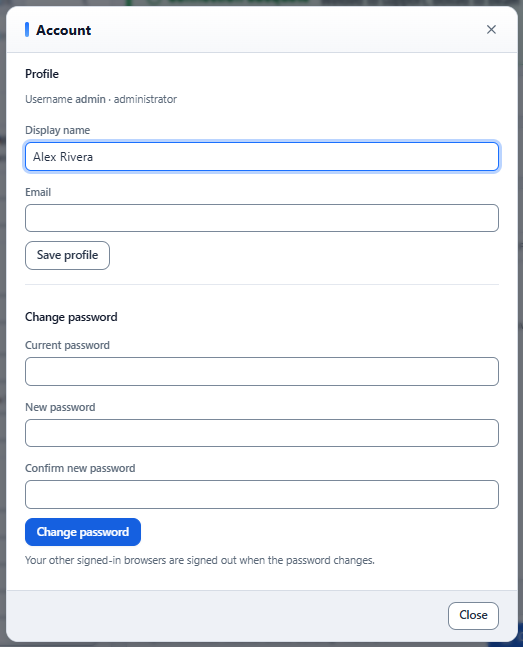
Open the account menu (your name in the header) and choose Account and password…:
- Profile. Change your Display name, then select Save profile. Your email address is your ILX account and cannot be changed here; contact support to change it.
- Password. Your password belongs to your ILX account. To change it, sign out and use Forgot your password? on the sign-in page.
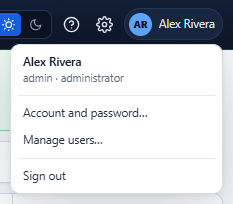
Managing users (administrators) #
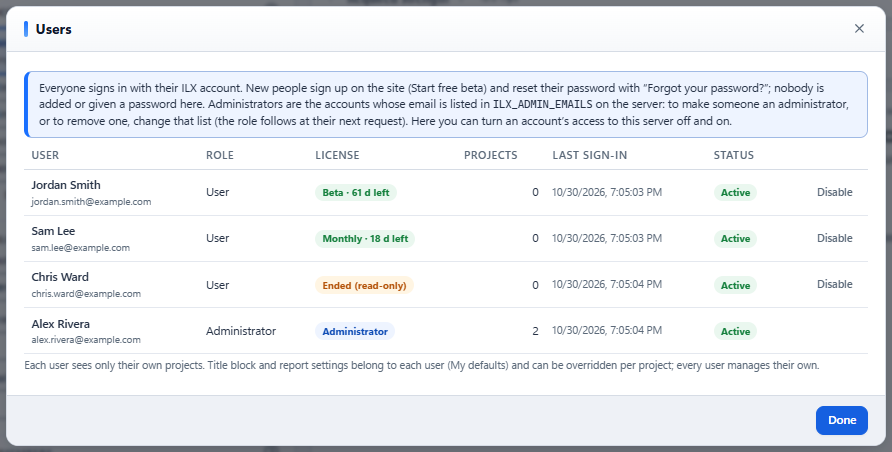
Administrators see Manage users… in the account menu. It lists every account on this server with its role, its license (plan and days left, or Ended (read-only)), its number of projects and its last sign-in.
| To… | Do this |
|---|---|
| Add a user | Nobody is added here. The person selects Start your free beta on the sign-in page (or the website) and creates their ILX account; they appear in the list after their first sign-in. |
| Make someone an administrator, or remove one | Roles come only from the server setting ILX_ADMIN_EMAILS (the administrators' emails). Ask whoever runs the server to add or remove the email; the role changes at that person's next page load. The dialog says so. |
| Reset a password | Not here: the person uses Forgot your password? on the sign-in page. |
| Disable or enable | Select Disable. The person is signed out and cannot use this server until enabled again; their projects are kept. Their ILX account itself is not affected. You cannot disable yourself. |
An account marked Local (cannot sign in) is left over from before ILX accounts. The server administrator moves its projects to an ILX account and deletes it (INSTALL.md, section 7).
Each user sees only their own projects, templates and settings. Title block and report settings belong to each user (My defaults) and can be overridden per project; every user manages their own, and the dialog says so. The table shows each user's number of projects and last sign-in.
Running without accounts. A server started with ILX_AUTH=0 has no sign-in, and everyone shares the same projects. This is intended for a single-user installation (development only).
The Verification page #
Settings → Verification shows how ILX was verified against the AISC Design Examples. See Verification. Settings → User manual shows this manual. The scope bar is hidden on these two tabs, because they do not depend on a project.